
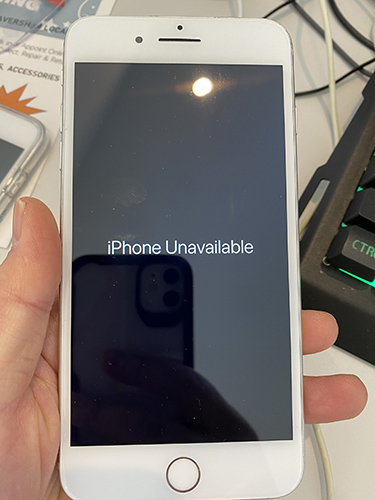
iPhone Unavailable? Here's How to Fix It [5 Proven Methods]
Have you been locked out of your iPhone with a frustrating "iPhone Unavailable" message? You're not alone. This message appears after multiple incorrect passcode attempts and can leave you feeling helpless. Luckily, there are a few proven methods to regain access—whether you remember your passcode or not.
In this guide, we'll break down what "iPhone Unavailable" really means and walk you through 5 trusted ways to fix it, including a one-click solution.
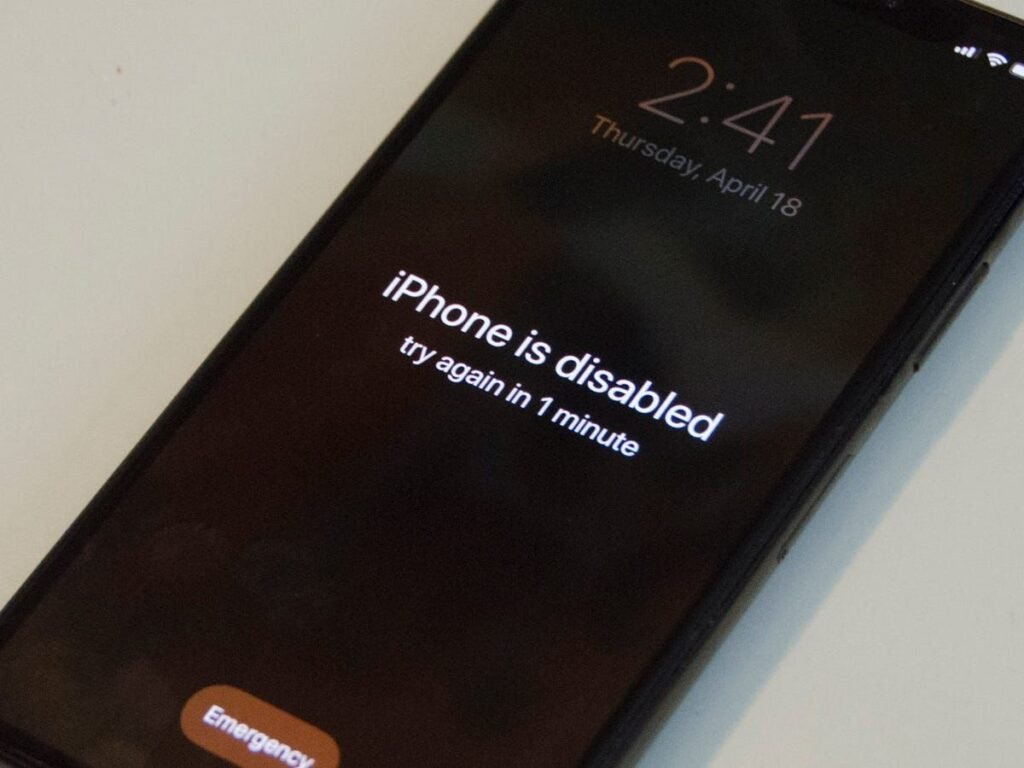

What Does "iPhone Unavailable" Mean?
The iPhone Unavailable message is part of Apple's security system designed to prevent unauthorized access. After a series of wrong passcode entries, your iPhone automatically locks for increasing periods of time.
Here’s how the lockout escalates:
- 5 incorrect attempts: Try again in 1 minute
- 6 incorrect attempts: Try again in 5 minutes
- 7 incorrect attempts: Try again in 15 minutes
- 8–9 incorrect attempts: Try again in 60 minutes
- 10 attempts or more: Your iPhone becomes completely locked
This feature is crucial for data protection, but when it locks out the actual owner, it's a headache. Thankfully, there are solutions.
1. How to Fix iPhone Unavailable Without Passcode – Using Tenorshare 4uKey
One of the fastest and easiest ways to bypass the unavailable screen is by using Tenorshare 4uKey, a tool designed specifically to unlock iPhones without needing a passcode or Apple ID.
- Download and install Tenorshare 4uKey on your computer
- Launch the tool and connect your iPhone via USB.
- Click Start and allow 4uKey to download the required firmware.
- Click Unlock to remove the passcode.
- Wait a few minutes – your iPhone will be unlocked.
✅ Compatible with iOS 17 and iPhone 15 series
✅ No Apple ID or passcode required
✅ Safe, secure, and fast
2. Fix iPhone Unavailable by Waiting for the Timer to Expire
If you remember your passcode, the simplest solution is to wait until the lockout timer ends.
After the wait:
- Enter the correct passcode
- Your iPhone will unlock, and everything remains intact
⚠️ Note: After 10 wrong attempts, this option disappears, and you must try other methods.
3. Fix iPhone Unavailable by Erasing iPhone (Apple ID Required)
Starting with iOS 15.2, Apple allows users to erase their iPhones directly from the lock screen.
Steps:
- Keep entering the passcode until you see “Forgot Passcode?” or “Erase iPhone”.
- Tap it and confirm that all data will be erased.
- Enter your Apple ID password.
- Your iPhone resets and can be set up as new.
Requirements:
- Your iPhone must be on iOS 15.2 or newer
- It must be connected to Wi-Fi or cellular
- Apple ID must be logged in
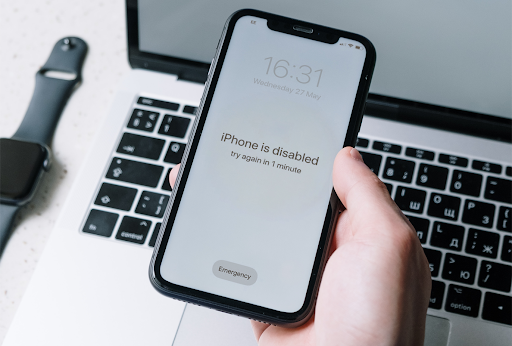
4. Fix iPhone Unavailable with iTunes or Finder
If you prefer Apple’s official tools, use iTunes (Windows/macOS Mojave) or Finder (macOS Catalina and later).
Steps:
- Connect your iPhone to the computer.
- Enter Recovery Mode.
- iTunes or Finder will detect the device and offer a Restore option.
- Restore your iPhone to factory settings.
⚠️ Caution: This will erase all data unless you have a backup.
5. Fix iPhone Unavailable via Find My iPhone (Remote Erase)
If Find My iPhone is enabled, you can erase your device remotely from another device or browser.
Steps:
- Visit iCloud.com and sign in.
- Go to Find iPhone > All Devices.
- Select your unavailable iPhone.
- Click Erase iPhone.
This is a convenient, remote method – but also requires:
- Apple ID login
- Internet connection on the device
Quick Comparison of the 5 Methods
| Method | Time | Data Loss | Apple ID Needed | Best For |
|---|---|---|---|---|
| Wait for Timer | High | No | No | Remembering passcode |
| 4uKey Unlocker | Low | Yes | No | Quick, easy unlock |
| Erase via Lock Screen | Medium | Yes | Yes | Users with iOS 15.2+ |
| iTunes/Finder Restore | Medium | Yes | No | Tech-savvy users |
| Find My iPhone | Medium | Yes | Yes | Remote unlock |
Final Thoughts: Choose the Right iPhone Unavailable Fix
Dealing with an iPhone Unavailable screen can be stressful, but you’re not out of options. Whether you choose to wait, use Apple’s tools, or opt for a faster third-party solution like Tenorshare 4uKey, there’s a way to get back in.
If you’re in a hurry and don’t remember your passcode, 4uKey is the top recommendation for its simplicity, speed, and reliability.


abSalam
Lorem ipsum dolor sit amet consectetur adipiscing elit, vestibulum lectus egestas cubilia nam sagittis, nulla posuere habitant